


TheGit
Version 0.3.0
Graphical Git client for GNOME with commit history, diff viewer, and staging support.
Features
Three-Panel Interface
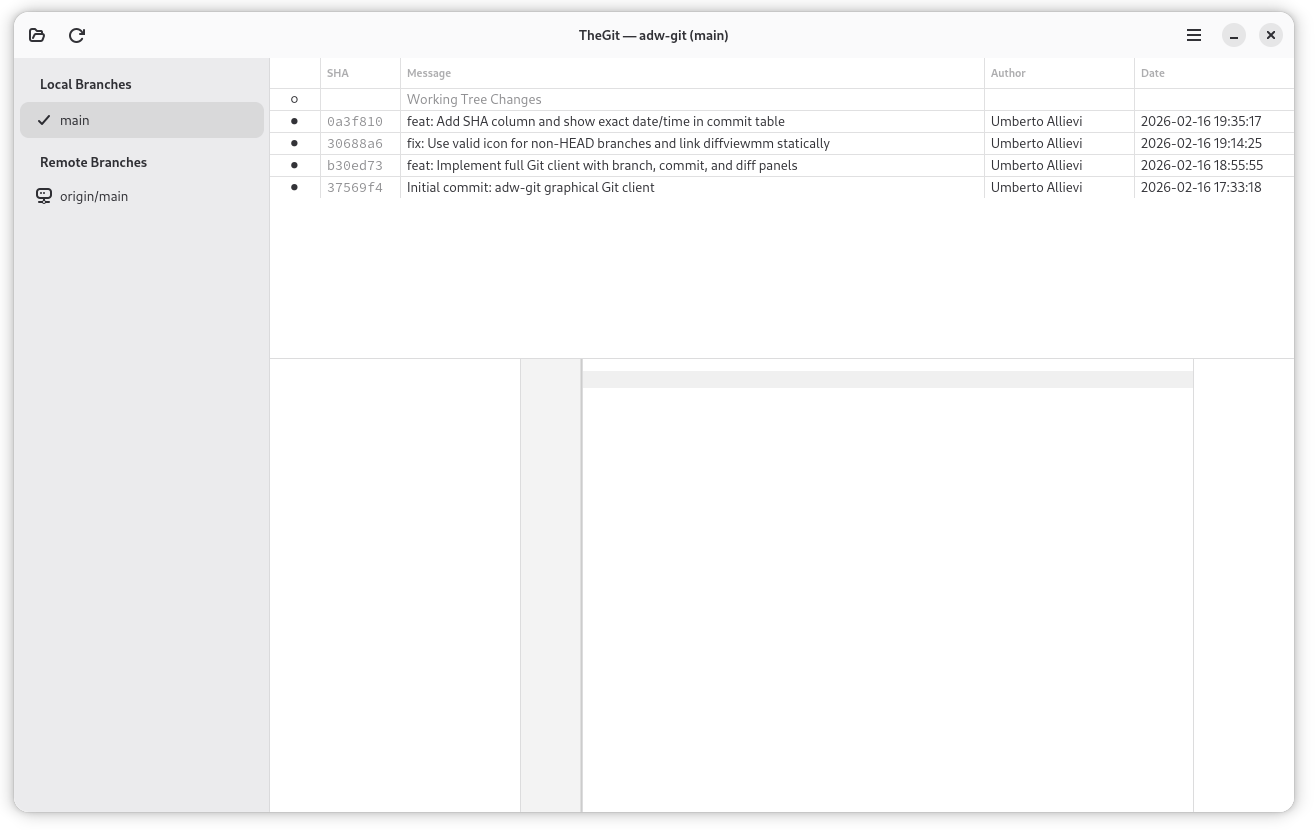
Branches and tags sidebar, commit history with graph visualization, and diff viewer with file list — all in a single, resizable window.
Commit History with Graph
Reverse-chronological commit table with visual indicators (● regular, ○ merge), abbreviated SHA, author, relative dates, and full commit messages.
Syntax-Highlighted Diffs
GtkSourceView-powered diff viewer with automatic language detection for 300+ languages. File status prefixes (M/A/D/R/?) for quick identification.
Staging and Committing
Stage/unstage files individually or in bulk. Commit with a message directly from the UI. Branch list and history refresh automatically after commits.
Branch and Tag Navigation
Sidebar shows local branches, remote branches, and tags with icons. Click to switch branches — commit history updates instantly.
Repository Discovery
Drag a folder onto the window to recursively scan for Git repositories. A tree view shows all found repos — click to open any of them.
Recent Repositories
Welcome page lists up to 50 recently opened repositories with name, branch, and path. One click to reopen.
Meld Integration
Right-click any file to open an external side-by-side diff in Meld. Also supports open in editor, stage, unstage, and discard changes.
Use Cases
Daily Git Workflow
Open your project, review working tree changes, stage files, and commit — all without leaving the GNOME desktop.
Code Review
Browse commit history, select a commit, and review its diffs with syntax highlighting. Click through changed files in the file list.
Branch Exploration
Switch between branches in the sidebar to compare commit histories. Quickly navigate local, remote, and tag references.
Multi-Repository Workspace
Drag a workspace folder to discover all Git repositories inside it. Open any repo from the discovery tree view.
Selective Staging
Stage individual files from the working tree. Use the context menu to discard unwanted changes before committing.
User Manual
Quick Start
- Launch TheGit from GNOME Activities or terminal
- Click the Open button (folder icon) or press
Ctrl+O - Select a folder containing a Git repository
- Browse branches in the sidebar, commits in the history, and diffs in the viewer
- Select "Working Tree Changes" to see uncommitted modifications
Opening a Repository
Three ways to open a repository:
- Open button: Click the folder icon or press
Ctrl+Oand select a folder - Drag and drop: Drag a folder onto the window. If it contains multiple repos, a discovery panel shows a tree of all found repositories
- Recent repositories: On the welcome page, click any repo in the recent list
The welcome page shows up to 50 recently opened repositories with name, branch, and path. Click x to remove entries.
Window Layout
┌──────────┬───────────────────────────────────────┐
│          │         Commit History                 │
│ Branches ├───────────────────────────────────────┤
│  & Tags  │         Commit Details                │
│          ├──────────┬────────────────────────────┤
│          │File List │   Diff Viewer              │
│          ├──────────┴────────────────────────────┤
│          │         Action Bar (staging)           │
└──────────┴───────────────────────────────────────┘
Left sidebar — Branches & Tags:
| Section | Icon | Description |
|---|---|---|
| Local Branches | Checkmark (HEAD) or generic | Local branch references |
| Remote Branches | Network | Remote tracking branches |
| Tags | Tag | Annotated and lightweight tags |
Top-right — Commit history in reverse chronological order. First row is always "Working Tree Changes".
Bottom-right — File list with status prefixes (M/A/D/R/?) and syntax-highlighted diff viewer.
Commit Details
Select a commit to see:
- SHA: Full 40-character hash (selectable for copying)
- Author: Name and email
- Date: Formatted as
YYYY-MM-DD HH:MM:SS - Message: Full commit message (URLs are clickable)
- Parents: Parent commit OIDs
- Working tree path: Repository location on disk
The commit history table shows:
| Column | Description |
|---|---|
| Graph | ● regular commits, ○ merge commits |
| SHA | 7-character abbreviated hash |
| Message | First line of commit message |
| Author | Author name |
| Date | Relative timestamp (e.g., "2 hours ago") |
Working with Changes
Select "Working Tree Changes" (first row in commit list) to see uncommitted modifications.
Staging files:
- Per-file: Click the stage/unstage button next to each file
- Stage All / Unstage All: Buttons in the action bar
- Context menu: Right-click a file for stage/unstage options
Committing:
- Select "Working Tree Changes"
- Stage the files you want
- Type a commit message in the text field
- Click Commit
Branch list and history refresh automatically after committing.
Discarding changes: Right-click a file → Discard Changes to revert to HEAD. This cannot be undone.
Context Menu
Right-click any file in the diff panel (when viewing working tree changes):
| Action | Description |
|---|---|
| Open in Editor | Opens with the system default application |
| Stage File | Stage the file (disabled if already staged) |
| Unstage File | Unstage the file (disabled if not staged) |
| Discard Changes | Revert file to HEAD |
| Compare with Meld | Open external side-by-side diff in Meld |
Repository Discovery
Drag a folder onto the window to scan recursively for Git repositories:
- A tree view shows the folder hierarchy
- Folders with
.gitare marked as repositories - Click Open next to any discovered repo
- Click
xto close the discovery panel
Useful for exploring a workspace with many repositories.
Keyboard Shortcuts
| Shortcut | Action |
|---|---|
Ctrl+O | Open repository |
F5 | Refresh branches, commits, and working tree status |
Configuration
Recent repositories stored in:
~/.config/adw-git/recent-repos.conf
- Up to 50 repositories remembered
- Most recently opened first
- Non-existent repositories removed automatically
- Remove entries from the welcome page with the
xbutton
Tips
- Quick navigation: Use the sidebar to jump between branches — history updates instantly
- Copy SHA: Click the full SHA in commit details to select it, then
Ctrl+C - External diff: Use "Compare with Meld" from the context menu
- Large repositories: Commit log limited to 500 entries per branch for performance
- Refresh: Press
F5after making changes outside TheGit (e.g., from the command line)