


TheRevealer
Version 0.2.0
Visual comparison tool for images and PDF documents, built with GTK4 and libadwaita.
Features
Auto-Alignment
Automatically aligns images before comparison using a multi-scale SAD (Sum of Absolute Differences) pyramid algorithm. Toggle with the header bar checkbox or Ctrl+A. The computed X/Y offset is shown in the status bar. Applied to overlay, difference, and subtract modes.
Four Comparison Modes
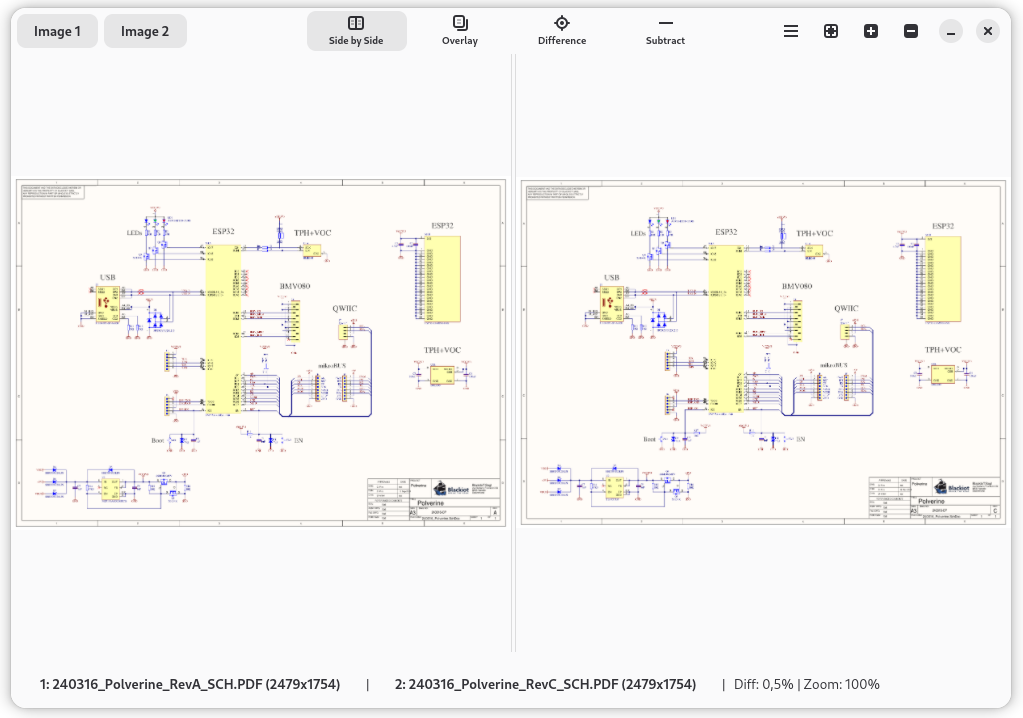
Side by side, overlay with opacity slider, pixel difference with configurable highlight color, and channel subtraction — each mode designed for a different analysis task.
Multi-Page PDF Support
Load single or multi-page PDFs rendered via Poppler. Navigate pages independently or in sync with per-file and "Both" controls.
Wide Format Support
PNG, JPEG, BMP, GIF, TIFF, WebP, SVG, and PDF. Mix formats freely — compare a PNG against a PDF page.
Overlay Mode
Alpha-blend both images with an opacity slider. Useful for detecting alignment shifts, registration errors, or subtle color changes.
Difference Mode
Highlights pixels that differ between images with configurable highlight color. Identical areas are dimmed. Status bar shows percentage of differing pixels.
Subtract Mode
Absolute per-channel difference (|R1-R2|, |G1-G2|, |B1-B2|). Identical pixels appear black, differences shown proportional to magnitude.
Zoom Controls
Zoom from 10% to 1000% with keyboard shortcuts (Ctrl++/−/0) or toolbar buttons. Fit-to-window mode scales images to fill available space.
Drag and Drop
Drop two files at once, or drop a single file on the left/right half of the window. Also supports command-line arguments.
Use Cases
Comparing Design Mockups
Load two versions of a UI mockup and use overlay mode to catch pixel-level differences in layout, spacing, or color.
PDF Document Review
Compare two versions of a PDF page by page in sync mode. Difference mode highlights every changed pixel.
QA Screenshot Comparison
Compare baseline and current screenshots. The diff percentage in the status bar gives a quick pass/fail metric.
Print Proof Verification
Compare a print proof against the original design. Subtract mode reveals subtle color shifts invisible to the eye.
Image Processing Validation
Compare input and output of an image processing pipeline. Side by side mode for visual review, difference mode for quantitative analysis.
User Manual
Quick Start
- Launch TheRevealer from GNOME Activities or terminal
- Click Image 1 or Image 2 in the header bar to open files
- Or drag and drop two files onto the window
- Use the view switcher to choose a comparison mode
- Adjust mode-specific controls (opacity slider, highlight color) at the bottom
Opening Files
There are three ways to load files:
- Toolbar buttons: Click "Image 1" or "Image 2" in the header bar to open a file dialog
- Drag and drop: Drop two files at once, or drop a single file on the left half (Image 1) or right half (Image 2)
- Command line:
the-revealer file1.png file2.pdf
Supported formats:
| Format | Extensions |
|---|---|
| PNG | .png |
| JPEG | .jpg, .jpeg |
| BMP | .bmp |
| GIF | .gif |
| TIFF | .tif, .tiff |
| WebP | .webp |
| SVG | .svg |
.pdf (single and multi-page) |
Comparison Modes
Switch between modes using the view switcher in the header bar.
Side by Side — Horizontal split pane. Drag the center handle to resize. Each image scales to fit its space.
Overlay — Alpha blending with an opacity slider:
- 0% = only Image 1 visible
- 50% = equal blend
- 100% = only Image 2 visible
Difference — Highlights pixels that differ. Intensity proportional to difference magnitude. Identical areas dimmed to 1/3 brightness. Configurable highlight color (default: red). Status bar shows percentage of differing pixels.
Subtract — Absolute per-channel difference: |R1-R2|, |G1-G2|, |B1-B2|. Identical pixels appear black. Different pixels shown proportional to magnitude.
Zoom Controls
| Control | Action |
|---|---|
+ button (header bar) | Zoom in (1.25x) |
- button (header bar) | Zoom out (0.8x) |
| Fit button (header bar) | Reset to fit-to-window |
Ctrl++ or Ctrl+= | Zoom in |
Ctrl+- | Zoom out |
Ctrl+0 | Fit to window |
Zoom range: 10% to 1000%. At fit-to-window (default), images scale to fill available space. When zoomed, overlay/difference/subtract views show scrollbars.
Multi-Page PDF Navigation
When a PDF is loaded, a page navigation bar appears at the bottom:
[<] Image 1: Page 1/10 [>] [< Both >] [<] Image 2: Page 3/20 [>]
- Per-file controls: Navigate one page at a time for each file
- Both (sync): Advance both files simultaneously for page-by-page comparison
Keyboard navigation:
| Shortcut | Action |
|---|---|
Left / Right | Navigate both files (or the single multi-page file) |
Ctrl+Left / Ctrl+Right | Navigate Image 1 only |
Shift+Left / Shift+Right | Navigate Image 2 only |
Status Bar
The bottom of the window shows:
- Image 1 button: Filename and dimensions (e.g.,
1: photo.png (800x600)). Click to open in default viewer. Hover for full path. - Image 2 button: Same for the second file
- Diff percentage: Shown when both images are loaded (e.g.,
Diff: 5.3%) - Zoom level: Current zoom percentage
Keyboard Shortcuts
| Shortcut | Action |
|---|---|
Ctrl+1 | Open Image 1 |
Ctrl+2 | Open Image 2 |
Ctrl++ / Ctrl+= | Zoom in |
Ctrl+- | Zoom out |
Ctrl+0 | Fit to window |
Left / Right | Navigate pages (auto) |
Ctrl+Left / Ctrl+Right | Navigate Image 1 pages |
Shift+Left / Shift+Right | Navigate Image 2 pages |
Ctrl+A | Toggle auto-alignment |
Auto-Alignment
When enabled, TheRevealer automatically finds the translational offset between the two images that minimizes positional differences, using a multi-scale SAD (Sum of Absolute Differences) pyramid algorithm.
How to use:
- Toggle checkbox in the header bar to enable/disable
- Keyboard shortcut:
Ctrl+A
Affected modes:
- Overlay — the second image is shifted before blending
- Difference — alignment applied before computing pixel differences
- Subtract — alignment applied before channel subtraction
- Side by Side — not affected (each panel shows the raw image)
When active, the status bar displays the computed X/Y offset (e.g., Align: +3, -2).